
出金リクエスト
Tradesmarter’s withdrawal feature provides your users with a quick and easy way to send a withdrawal request, while also making this process more efficient for your banking team.
Widget implementation:
<div id="bpwidgets"></div>
<script type="text/javascript">
bpApp({
apiHost: 'https://bpw.brand.com',
themeSet: 'default',
lang: 'en',
state: 'wowMain.banking.withdrawal',
redirectSuccess: 'https://www.brand.com/dashboard',
redirectFailure: 'https://www.brand.com/',
}).render( '#bpwidgets');
</script>
Using the withdrawal widget:
The withdrawal page is where the user will select the withdrawal method and complete all other information. The methods available for withdrawal are dependent upon your brand’s payment methods.
The general withdrawal methods available are: Credit card, wire transfer and other methods.
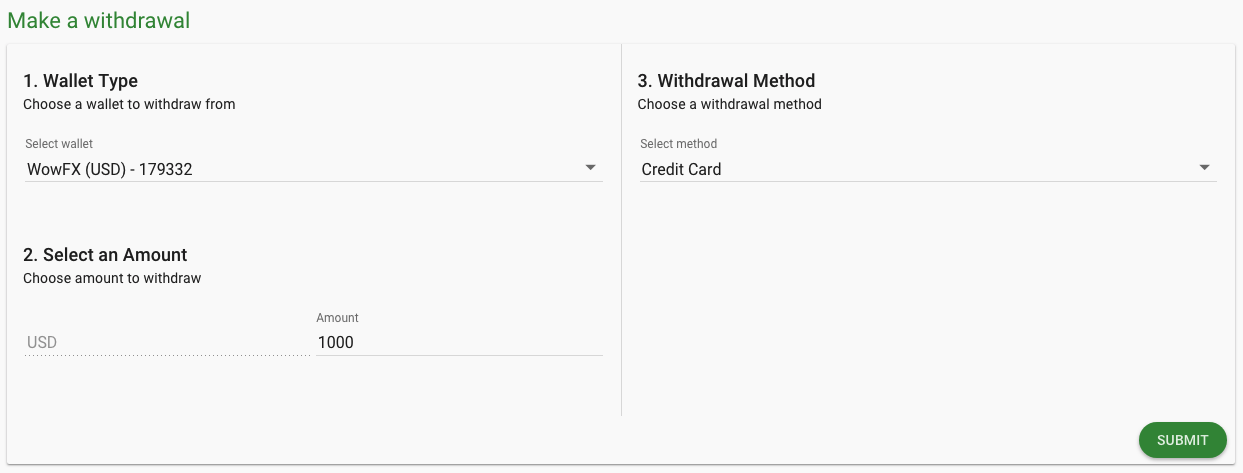
Withdrawal request: Credit Card
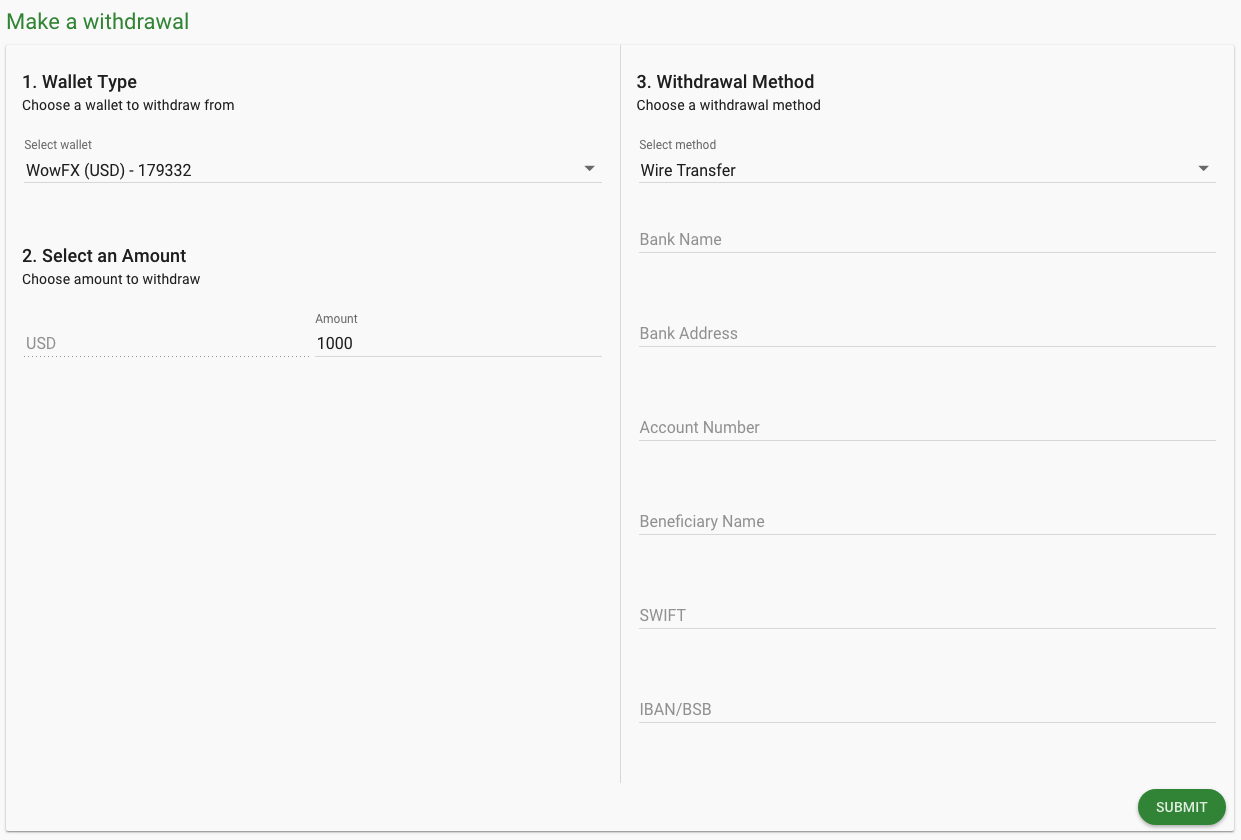
Withdrawal request: Wire Transfer
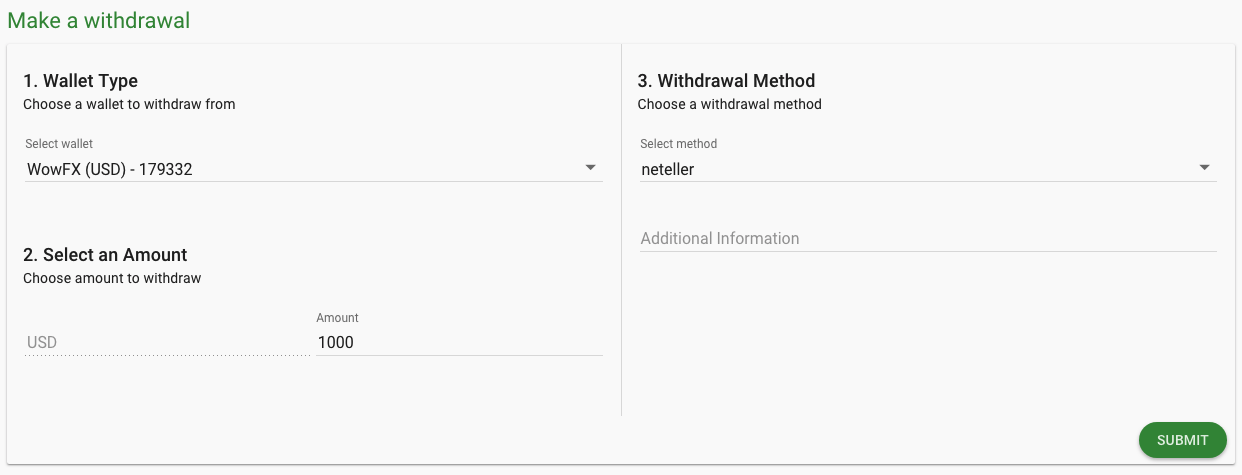
Withdrawal request: Other Methods
In order to make a withdrawal request, users should:
1. Select preferred method of withdrawal
2. Enter amount of withdrawal and any additional information (depending on withdrawal method)
3. Submit by clicking “Withdraw”
The user will be prompted with two warning screens if there is a bonus or profit amount that he may lose by completing the withdrawal.
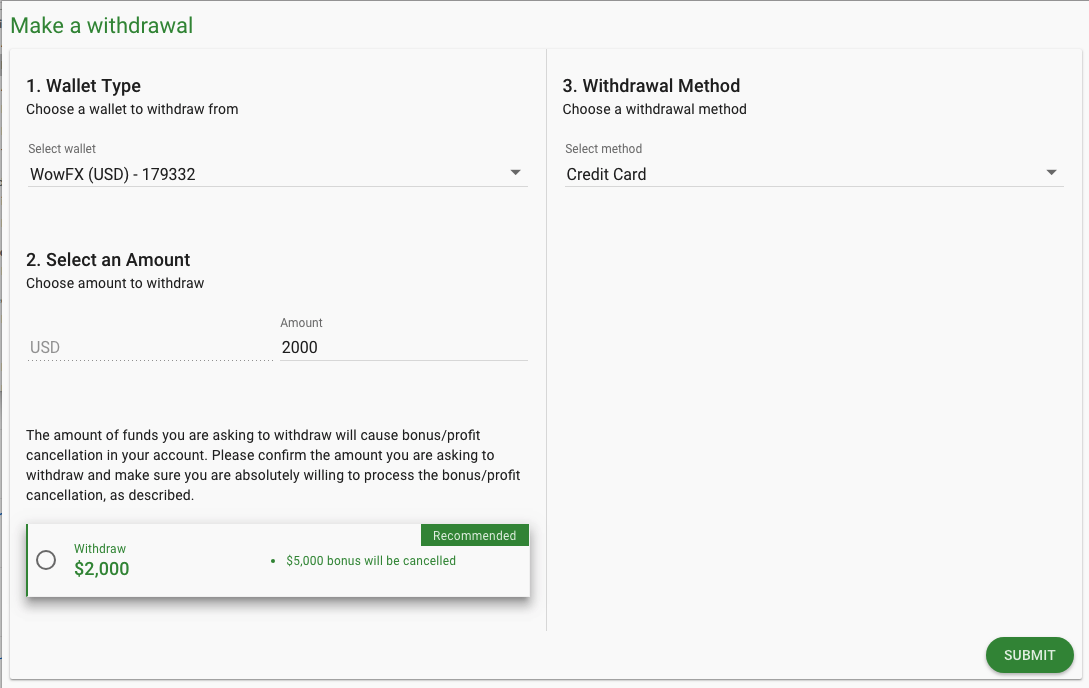
Viewing the status of withdrawal requests
Once the withdrawal request is submitted, the status of the request will be available in the Balance History section of the user account.

The Balance History section will show the user a summary of the withdrawal request, including:
- The date and time the user requested the withdrawal (according to the user’s local time)
- Amount requested
- Method requested
- Status of withdrawal request
- The option to cancel withdrawal
Viewing withdrawal requests in the Back Office?

All withdrawal requests will be shown in the Withdrawals report in the Reports module of the back office (Reports users withdrawals). This report shows a summary of the withdrawal request details such as: withdrawal ID, user ID, affiliate, amount requested, date requested, withdrawal method, status and follow up.
*The date of requested withdrawals is shown according to local computer time.
Checking the withdrawal request
By clicking on the withdrawal ID, a summary of the individual withdrawal request will open in a new window.

This window displays all of the information needed to efficiently analyze a withdrawal request. Not only does the report summarize the withdrawal request, but it also allows you to see a summary of the users’ deposit volume, withdrawal volume and net profit to date.
The window also includes a list of suggested checks to follow for processing a withdrawal:
- Available cash – check if the withdrawal amount is less than or equal to the available cash in the balance.
- Profit check – check is the client is withdrawing profit and provided the correct withdrawal method for profit funds
- Validated – check if the client has passed the validation process
- IP check – check the IP address of the client (for fraud)
- Bonus check – check if the client is eligible to withdraw bonus funds
- Withdrawal method – set the method that the client will receive the withdrawal
- Notes – leave any comments
Setting the status of the withdrawal request
Once you have checked the withdrawal request, you can set the status, follow up and withdrawal reason in the Withdrawals report. By right clicking on a withdrawal request you can:
- Change status and follow up
- Change withdrawal reason

Possible statuses for a withdrawal:
- Withdrawal to process
- Withdrawal processed
- Canceled
- Retention – will allow you to set the account manager to handle the follow up
- Compliance – will allow you to set who is handling the compliance follow up

Possible withdrawal reasons:
- Close the account
- Withdrawal profit
- Doesn’t like the platform / trading elsewhere
- Needs the money / ROI
- Afraid to lose
- Support, technical or trade issues
- Compliance procedure
- Test the withdrawal system
- Other reasons
- Doesn’t want to specify
Processing the withdrawal request
1. Filter the withdrawals report to “withdrawal to process” status
2. Process the withdrawal
3. Change the status of the withdrawal request to “withdrawal processed”
Video: