
Klik2Mail
Objective:
Allow the agent to send a personal email to a client from within the CRM, without being exposed to the client’s email address.
How to configure (For IT/Admin):
For Gmail users - Make sure the admin allows less secure apps to access the mailbox. https://myaccount.google.com/lesssecureapps
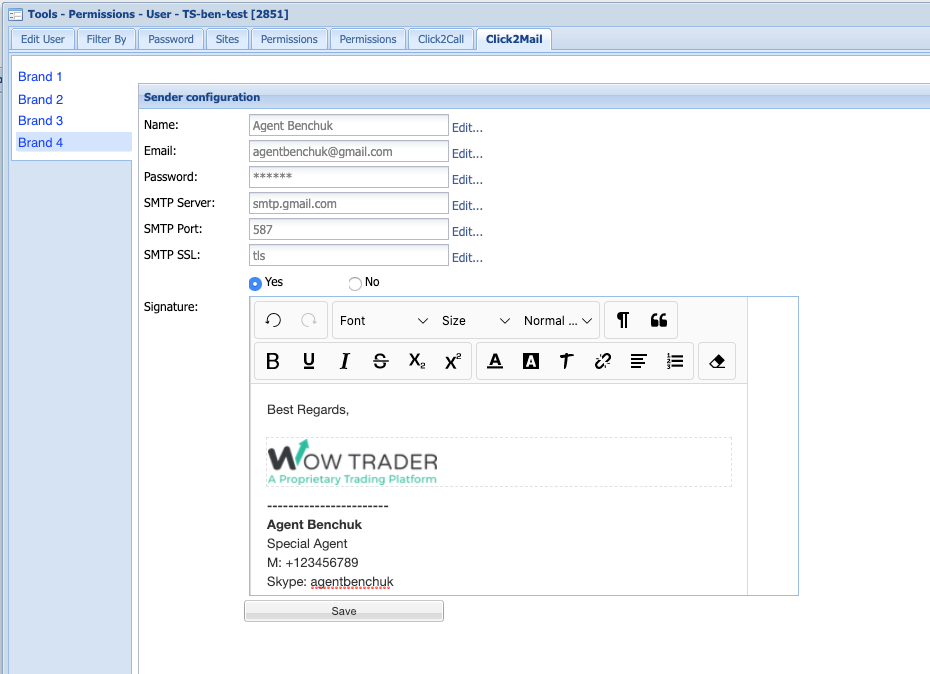
In the agent’s settings, enter all details:
For multi-brand operators - select the relevant brand.
Name: This is the name the client will see as “Sender”.
Email: The agent’s email address (name@brand.com)
Password: The agent’s mailbox password.
SMTP Server, Port, SSL - based on your mail server provider. (in gmail its smtp.gmail.com / 587 / tls)
Add Signature (optional). Images can be copy-pasted into the signature.
Save.
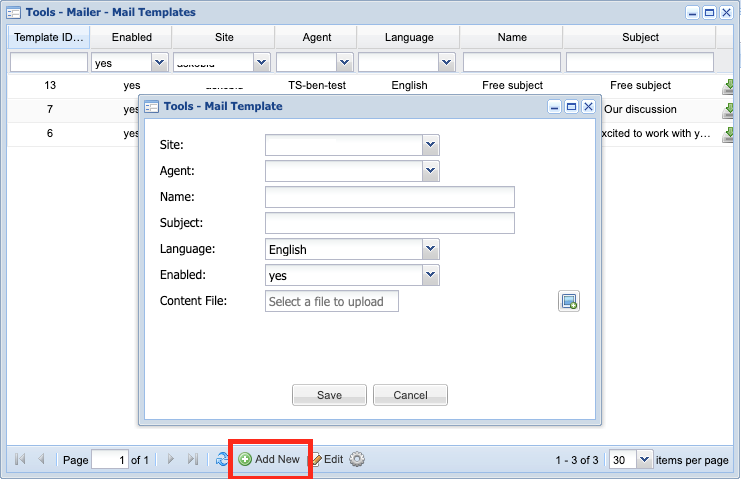
How to upload brand templates - to be enabled for all agents (For IT/Admin):
Tools => Mailer => Mailer Templates
Use the wizard to upload html templates for your agents.
This is permission based. Please contact us if your IT/Admin do not have an option to save or upload templates.
How to send an email (For agents):
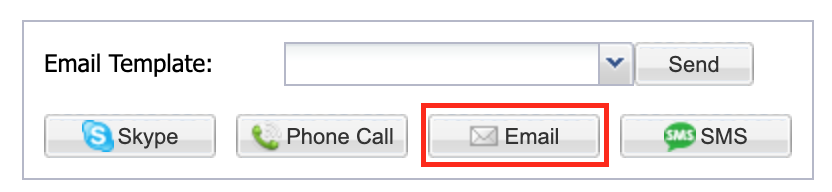
In the user’s dashboard, click the “Email” button. The “Email” button is enabled to all crm users, if your mailbox details are NOT configured in your admin user area, the “Email” button will open your computer’s default mail client, as it was always being used.
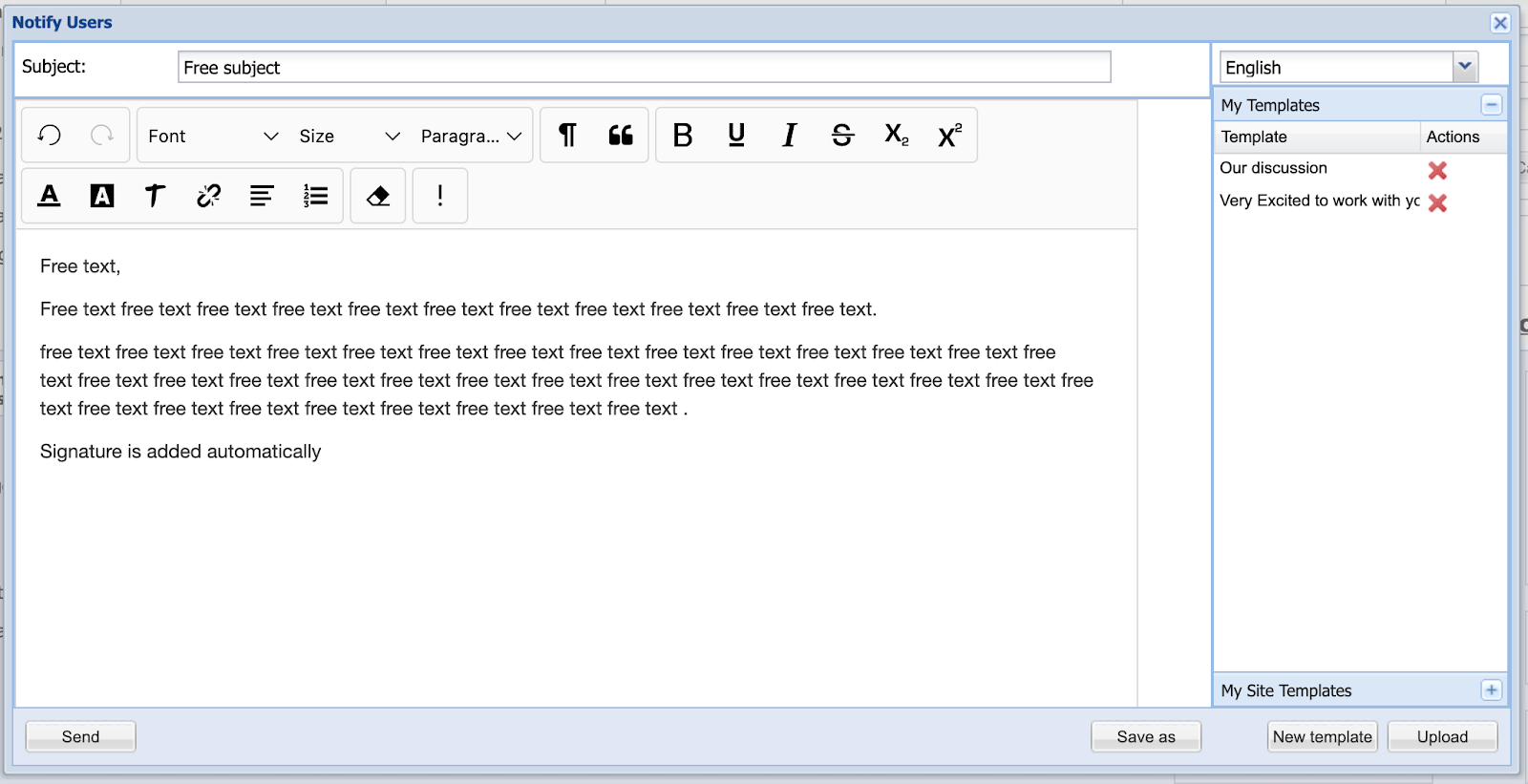
In the html popup, you have few options:
Send the client a free text email.
Type your desired subject and body.
Edit the style with the html editors.
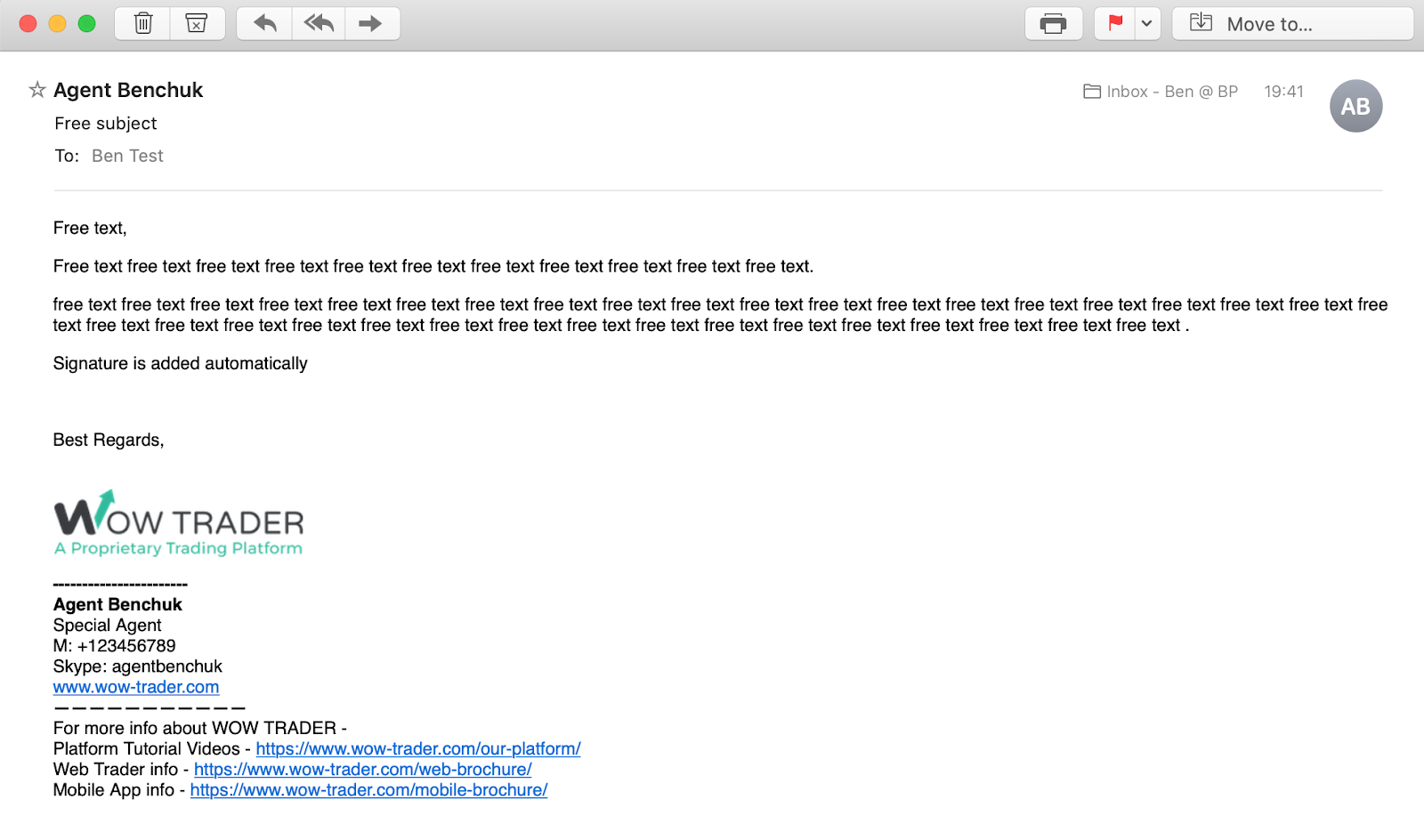
If your signature is enabled, leave blank. It will be added automatically at the end of the email.
Use the “!” button to insert automatic parameters (the system will pull them from the database and present them to the client.
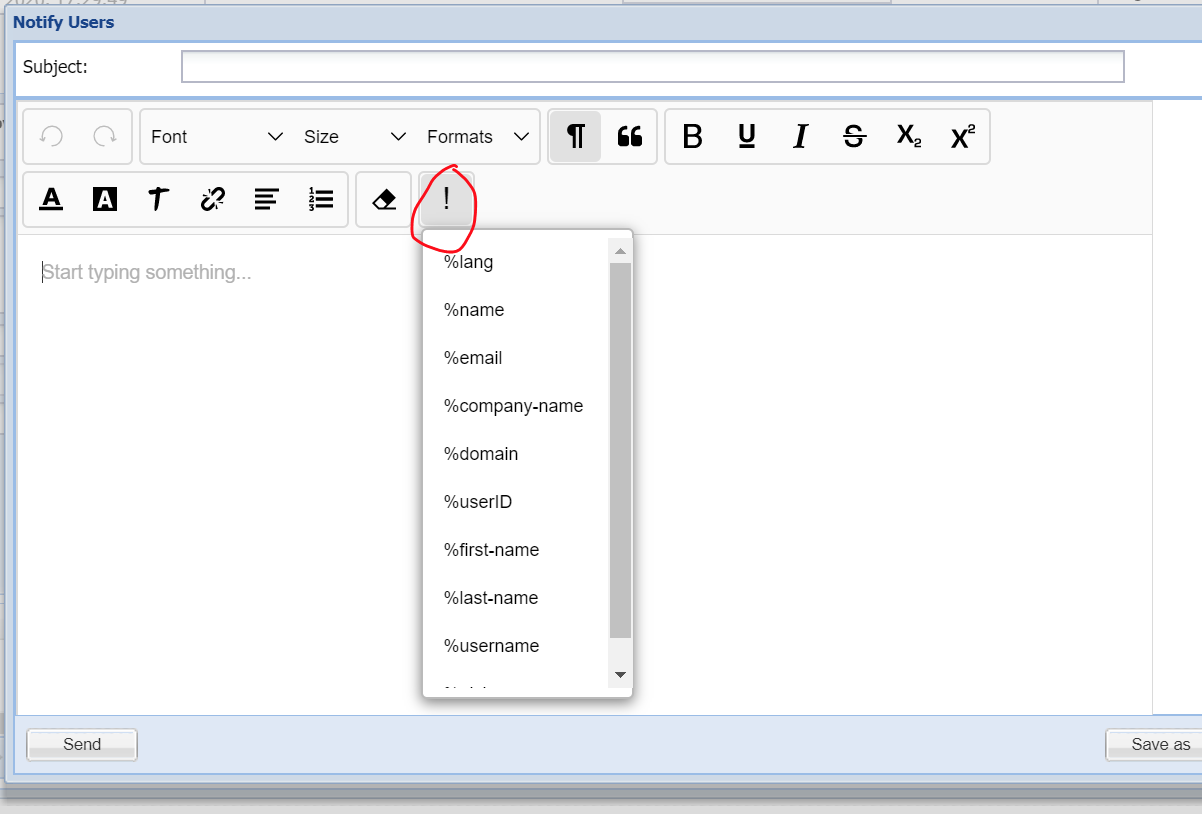
Click “Send” to send the email to the client.
Click “Save as” to save your email as a template.
Select a template uploaded by your brand’s admin.
Create your own template and save it in your list.
Logs:
Sent email will be saved in CRM under
Reports => Users => Sent Emails
User => CRM => Sent Email